Posts

Notifications : Service Broker, SqlDependency and NotifyIcon
Image
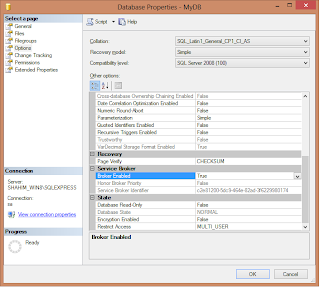
Hi Guys, This time I made a small application to show notifications using Service Broker (Query Notifications), SqlDependency and NotifyIcon. Before you Start, 1) Sql Server (Any Version) 2) Visual Studio (Any Version) Step One : Enable Service Broker for the Database you work on. Step Two : Add the Following Code in a Console/Windows Application   using System; using System.Collections.Generic; using System.Configuration; using System.Data; using System.Data.SqlClient; using System.Drawing; using System.Linq; using System.Security.Permissions; using System.Text; using System.Threading.Tasks; using System.Windows.Forms; namespace TestApplication {     class Program     {         static void Main(string[] args)         {             //Start the Dependency         ...

HTML 5, Bing Map Control to Show your Current Location

Image
Hi Guys, My this post simply shows you how to use the HTML 5 navigator object and Bing Map Control to show your current location. Before you Start, 1) You need to have an HTML 5 Compatible browser. Duh, almost all the new browsers supports it. 2) A text Editor (Notepad, Wordpad would do) 3) A Bing API Key (You can get one from www.bingmapsportal.com  by registering) Step One : Open the Text Editor and Paste Following HTML and Save it as HTML. <!DOCTYPE HTML>  <html> <head> <meta http-equiv="Content-Type" content="text/html; charset=utf-8"/>       <script type="text/javascript" src=" http://ecn.dev.virtualearth.net/mapcontrol/mapcontrol.ashx?v=7.0"></script >       <script type="text/javascript">       var map = null,lat,lng; function errorHandler() { }               ...

Asynchronous Programming : Sending Mails using async and await in .NET 4.5

Image
Hi Folks, This is Time I am going to tell you how to send mails asynchronously using async and await keywords . Enjoy. Before You Start you must have, - Visual Studio 12 installed Step 1: Create a Console Project in Visual Studio     Step 2: Make Mail Manager Class to Send Asynchronous mails Step 3: Call it using the Console application

Security : Encryption and Decryption function in SQL Server

Image
Hi Folks, This is a continuation of my last Blog post. Enjoy. Before You Start you must have, - Visual Studio 2005/2008/2010 installed - MS SQL Server 2005/2008 installed Step 1: Create an SQL Server Project in Visual Studio Step 2 : Add a user defined Function Step 3 : Add the code in my previous blog which Encrypts a string to the user defined function Step 4 : Add Database reference to the Database which you want to deploy the function Step 5 : Right Click on the Project and Click Deploy once deployed you can see the Project has been deployed on your database under. [Database Name]->Programmability->Assemblies Step 6 : Use the Functions in SQL Server Once the Project is deployed you can see the two functions in  [Database Name]->Programmability->Functions->Scalar-valued Functions Then they can be used in SQL Server as regular functions.

Security : Encryption and Decryption from and to a string

This is article is about two simple Encryption and Decryption methods which I wrote using .NET Class Libraries. When you provide a string as a parameter the EncryptFromString method returns an encrypted string. Similarly, when you give the encrypted string to the DecryptFromString method it returns the decrypted string. Before you start you must have, - Visual Studio 2005/2008 Installed Step 1 : Create a Console Application Then open the Program.cs and just after the Main method paste the following code, ------------------------------------------------------------------------------------------------------------- //Encryption Method       private static string EncryptToString(string str)         {             List<uint> objList = new List<uint>();             StringBuilder strBuilder = new StringBuilder();            ...

A Client - Server App using .NET Remoting

Image
This is a basic client-server application where the client is able to view and insert records to the database using the server. Both applications have been created as Console applications, just to keep it simple ;-) Before you start you must have, - Visual Studio 2005/2008 Installed - MS SQL Server 2005 Installed Step 1 : Creating the Server Before you start to do anything  Open Visual Studio and create a Console Application in C# named ServeWithDL. Create the following folder structure and the files. Before you start to do anything, right click on References and add reference to System.Runtime.Remoting System.Runtime.Serialization System.Runtime.Serialization.Formatters.Soap Then open the Supplier.cs within the BusinessEntities folder and paste the following code; ==================================================================== using System; using System.Collections.Generic; using System.Linq; using System.Text; using System.Collections...

Co-existence : IBM DB2 and MS SQL Server 2005 using Linked Server

Image
Well, this article explains about connecting to an IBM DB2 Database using a Linked Server which is available in MS SQL Server 2005. The underlying connection is established through an ODBC connection. You can also use this Linked Server to retrieve data and execute updates, to and from IBM DB2 Database. This method has proven very effective in a project which I recently worked on. Currently, it is being used to Synchronize data with an IBM DB2 Database which resides on an AS 400 system and a MS SQL Server  2005 Database. Prerequisites : You must have, - IBM DB2 Server or Client Installed - MS SQL Server 2005 Installed Step 1 : Creating the ODBC Connection. Navigate to Start -> Control Panel -> Adminitrative Tools -> Data Sources (ODBC) Pic 1.1 - Select IBM DB2 ODBC DRIVER and Click Finish Button Pic 1.2 - Give a Name to the Data Source Remember to Select the Database alias of the IBM DB2 Database you want to connect to...